This guide explains the recommended pattern for integrating Make.com with Chatbot Builder AI (CBB) so that an AI Agent or flow can use data returned from Make. The example used is email verification, but the same pattern applies to any external tool or API.
Core Principle
CBB does not automatically read webhook responses from Make. For the AI Agent or flow to use the result, Make must explicitly write the data back into CBB, typically as a Custom Field. The reliable pattern is:
CBB collects data → CBB triggers Make → Make processes data → Make writes result back to CBB (Custom Field) → CBB continues flow using that field.
Requirements
Chatbot Builder AI
A flow with a “Collect Email” step
A “Trigger Make” step
Custom Fields:
email (email type)
isVerified (text type)
Make.com
A scenario with:
Chatbot Builder AI: Watch “Trigger Make” event
An email verification app (for example, Reoon)
Chatbot Builder AI: Set Custom Field
Chatbot Builder AI: Send Flow to User
How It Works
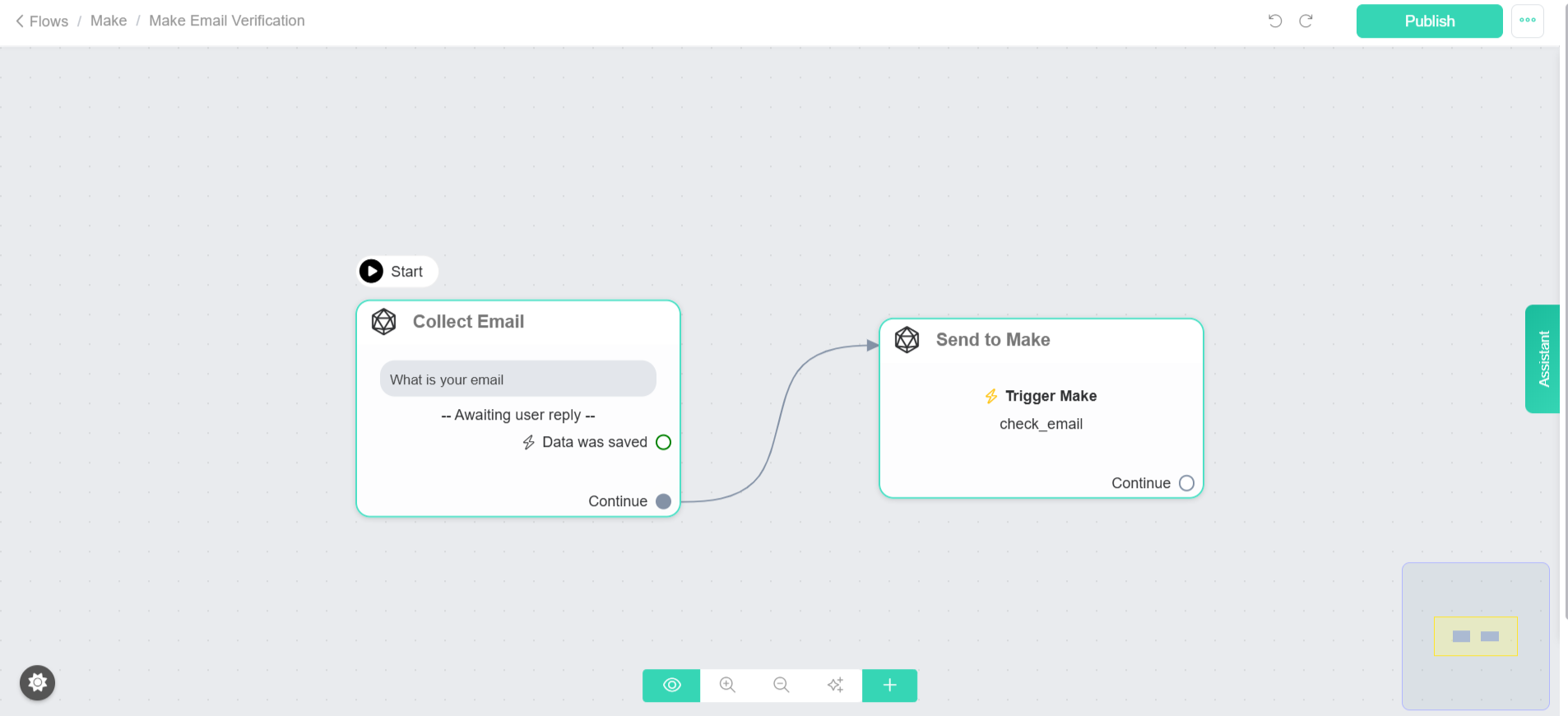
Step 1: Collect the email in CBB
Add a Collect Email step in your CBB flow.
When the user replies, save the email into a Custom Field such as {{email}}.
Step 2: Trigger Make from CBB
Immediately after collecting the email, add a Trigger Make step.
Send the following data to Make:
email = {{email}}
user_id or contact_id (required to update the correct user)
optional context fields for debugging
Step 3: Verify the email in Make
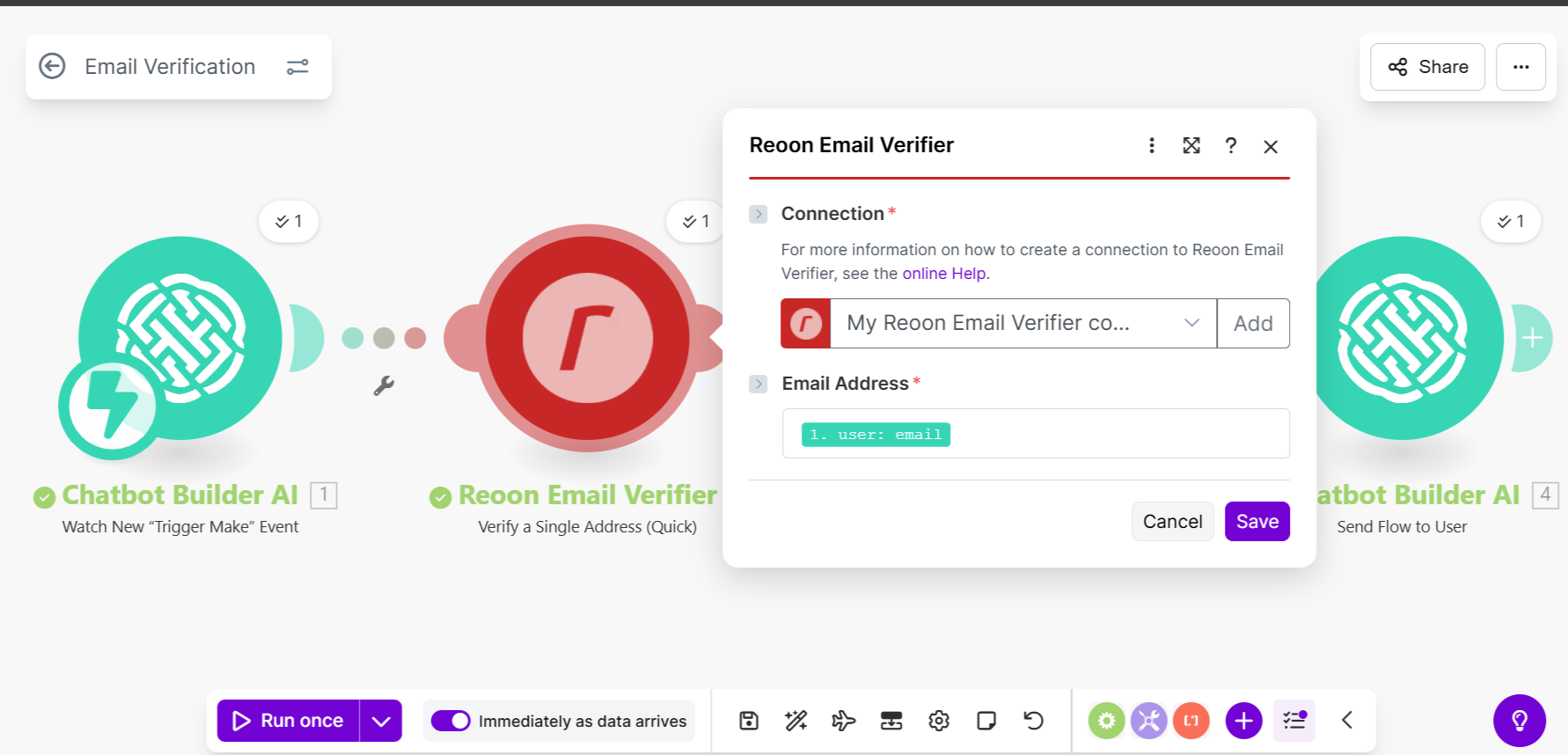
In Make:
Use “Watch Trigger Make Event” to receive the payload.
Pass the email into your verification app (e.g. Reoon).
The app returns a result such as valid or invalid.
Step 4: Write the result back to CBB
This is the most important step.
In Make, use “Chatbot Builder AI – Set Custom Field”:
User ID / Contact ID: map from the Trigger Make event
Custom Field: isVerified
Value:
true if the email is valid
false if the email is invalid
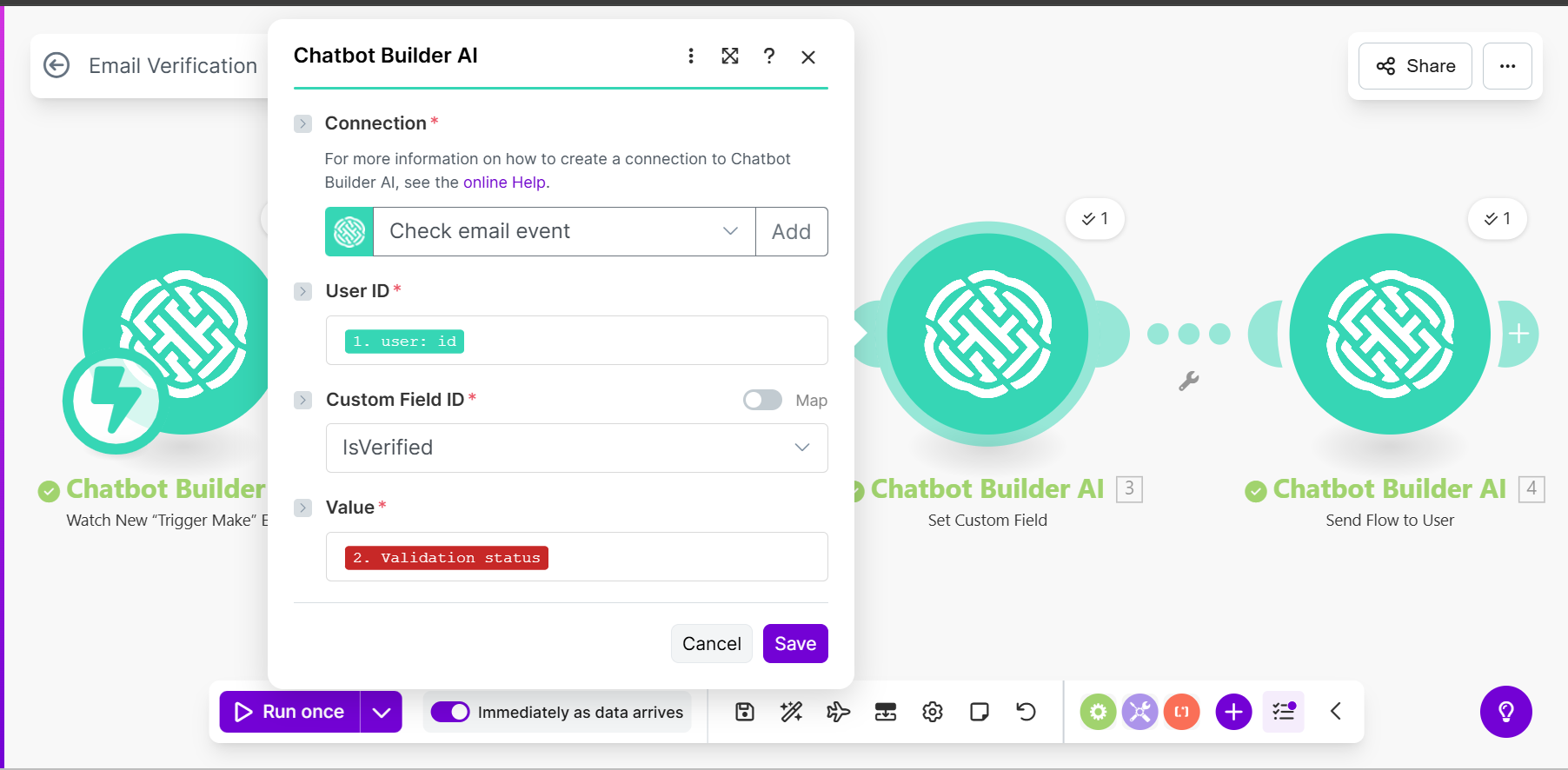
Tip: Keep isVerified strictly true or false so it’s easy to use in conditions.
Step 5: Continue the flow in CBB
Because Make runs asynchronously, add a short Wait step (2–5 seconds).
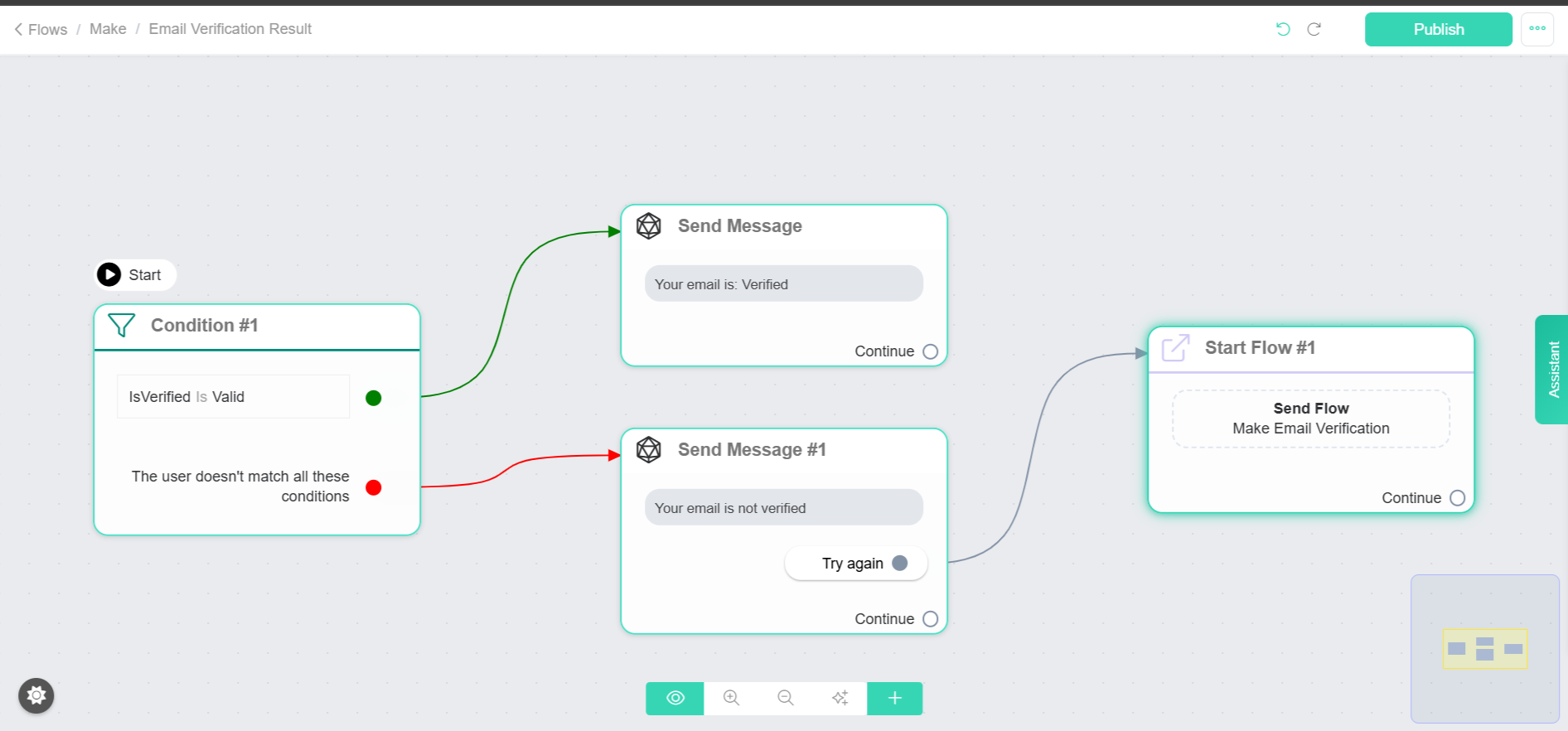
After the wait, add logic such as:
If {{isVerified}} equals true → continue normally
If {{isVerified}} equals false → ask for a new email or route differently
Why the AI Agent “Doesn’t See” the Webhook
If Make only returns a webhook response but does not write data back into CBB as a Custom Field, the AI Agent has nothing to reference. AI Agents and flows can only use:
Conversation messages
Stored Custom Fields
Explicit tool outputs returned into CBB
External webhook responses alone are not accessible unless mapped back.
Common Troubleshooting Checks
Confirm that the Make scenario is triggered successfully
Ensure the correct user_id/contact_id is passed
Verify the Custom Field is updated in the user profile
Add a Wait step before checking the field
Ensure your condition checks match the stored value exactly
Review CBB Error Logs for integration or permission errors
Example Use Cases
Block fake or disposable emails
Route users based on the verification result
Prevent invalid leads from reaching sales or automation
Apply the same pattern to phone validation, CRM lookups, scoring, or eligibility checks
Reference Pattern Summary
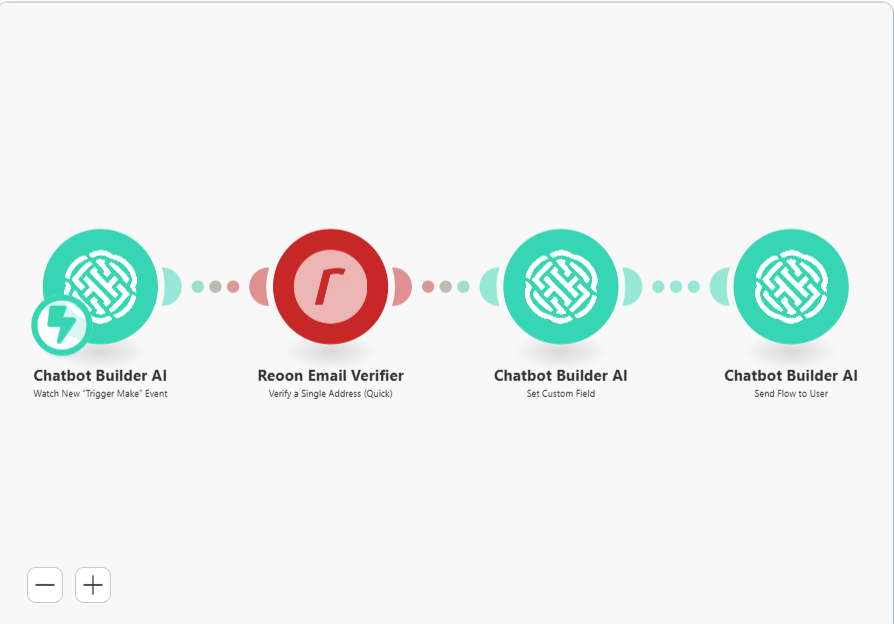
Collect in CBB → Trigger Make → Process in Make → Set Custom Field in CBB → Wait → Use field for logic or messaging.
Was this article helpful?
That’s Great!
Thank you for your feedback
Sorry! We couldn't be helpful
Thank you for your feedback
Feedback sent
We appreciate your effort and will try to fix the article